
WhatsApp order and dispatch updates for manufacturers replace the phone calls that start with “maal kab niklega?” A dealer gets a message when the order is confirmed, when it is packed, when the truck leaves and when it arrives, and your sales team stops being a free tracking service.
Quick answer: send four template messages per order (confirmed, ready, dispatched with the vehicle or LR number, delivered) through the WhatsApp Business API, and file them under Meta’s utility category so they stay cheap and get approved. Keep promotion out of them, collect opt-in from every dealer, and add a delay message for the days things slip. This guide gives you the sequence, five sample templates, the real Meta cost per message and a setup you can finish in an afternoon.
Key takeaways
- Four messages cover most orders: confirmed, ready, dispatched, delivered. Add a delay message as a fifth.
- Order and dispatch messages belong in Meta’s utility category. A promotional line inside one can get it re-categorised as marketing, which costs about 7.5 times more.
- Meta lists utility messages at about ₹0.115 each before GST in India (as reported, checked 6 October 2026). Since 1 October 2026 this applies inside an open chat window too.
- In B2B, one order often has several people who need to know. Plan for the owner, the accounts person and the store manager, each with their own opt-in.
- DTB has no native Tally or ERP connector. Data reaches DTB through CSV uploads, the API, Zapier or n8n.
Published 6 October 2026 by the Digital Toolbox team. Meta’s pricing and template rules checked the same day.
In this guide
- Why manufacturers should move order updates to WhatsApp
- The order-to-delivery message sequence
- Five sample templates
- Utility or marketing: what Meta allows
- What these messages cost
- How to set up order and dispatch updates, step by step
- Handling B2B edge cases
- Common mistakes
- How DTB helps
- FAQ
Why manufacturers should move order updates to WhatsApp
WhatsApp order and dispatch updates for manufacturers work because your dealers and buyers already read WhatsApp all day, and a template message arrives as a normal chat instead of an email nobody opens. The goal is simple: answer the status question before it is asked.
Think of a Rajkot auto-parts maker with forty active dealers. Each dealer rings twice a week to ask whether an order has left. That is eighty calls to answer, each one pulling someone off the shop floor or the dispatch desk. A message at the moment of dispatch removes most of them, and the dealer keeps a dated record in the chat.
B2B differs from the parcel notifications you get from an online store. An order is bigger, a delay costs the dealer money, and more than one person at the buyer’s end cares. Most guides on this topic are written for consumer parcels, so they skip purchase order (PO) numbers, partial dispatches and multiple contacts per account. This guide covers them.
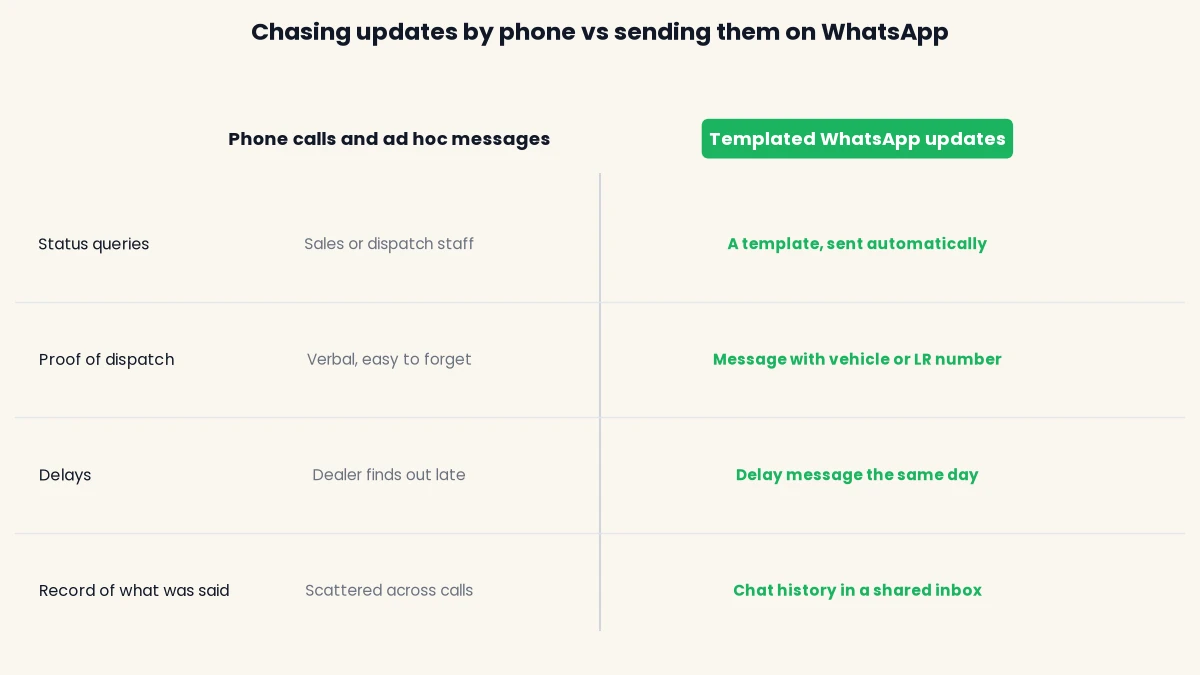
A WhatsApp update does not replace your ERP or accounts software. It carries the facts out of them to the person waiting. Whoever updates the status, a dispatch clerk or a sheet your team maintains, the message goes out in the dealer’s chat.
The order-to-delivery message sequence
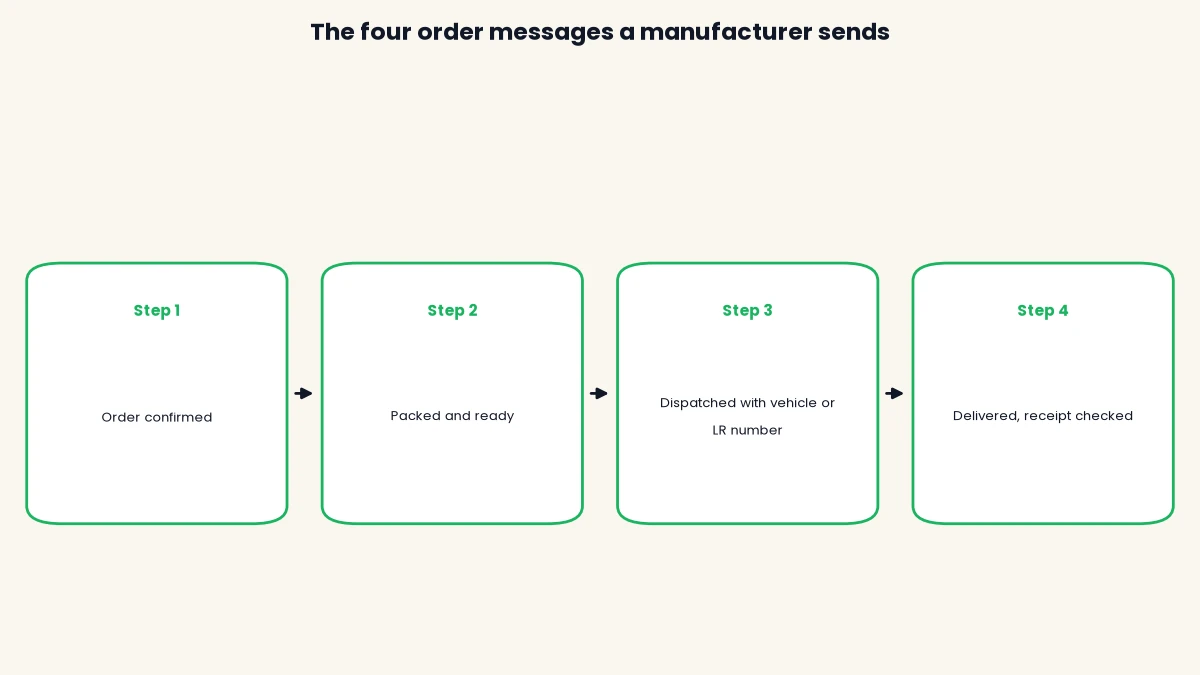
A manufacturer’s WhatsApp sequence has four core messages, one for each point where the dealer would otherwise call you: order confirmed, ready for dispatch, dispatched, and delivered. A fifth message, for delays, is the one dealers value most.
| Stage | What triggers it | Details to include | Template category |
|---|---|---|---|
| Order confirmed | Order or PO accepted | Order number, PO reference, expected dispatch date | Utility |
| Packed and ready | Production and QC complete | Order number, items packed, planned pickup date | Utility |
| Dispatched | Vehicle leaves the plant | Order number, transporter, vehicle or LR number, expected arrival | Utility |
| Delayed | Dispatch or arrival date slips | Order number, new date, short reason, who to reply to | Utility |
| Delivered | Goods received or marked delivered | Order number, delivery date, how to report shortage or damage | Utility |
Order confirmed
This message tells the dealer you have the order and when to expect it. Put the order number and their PO reference in the text so accounts can match it. State the expected dispatch date, not a vague “soon”. If the date moves later, the delay message handles it.
Packed and ready
Send this when production and quality checks are finished and the goods are waiting for a vehicle. It is useful when the dealer arranges their own transport, since it tells them to book a truck. If you ship through your own fleet or a transporter, you can skip it and go straight to dispatch.
Dispatched, with the vehicle or LR number
This is the message that saves the most calls. Include the transporter name, vehicle number or lorry receipt (LR) number, and the expected arrival date. The dealer can pass those details to their gate or store team, who can then plan unloading. A tracking link can sit in a call-to-action button if your transporter provides one.
Delivered, and a check on receipt
Confirm the delivery date and tell the dealer how to raise a shortage or damage issue. A reply here opens a 24-hour chat window, so your team can answer in the shared inbox without another template. Keep this message factual and skip any request for a review or a reorder, which would make it promotional.
Five sample templates for order and dispatch updates
These sample texts show the structure of a utility template: a specific order, specific facts, no promotion. The {{1}} style placeholders are variables that DTB’s template builder fills in per message. Change the wording to match how you talk to your dealers.
| Template | Sample text |
|---|---|
| Order confirmed | Hello {{1}}, we have received your order {{2}} (PO {{3}}). Expected dispatch date: {{4}}. Reply here if you need to change anything. |
| Packed and ready | Hello {{1}}, order {{2}} is packed and ready at our plant. Planned pickup: {{3}}. |
| Dispatched | Hello {{1}}, order {{2}} was dispatched on {{3}} with {{4}}, vehicle or LR number {{5}}. Expected arrival: {{6}}. |
| Delayed | Hello {{1}}, order {{2}} is delayed. New dispatch date: {{3}}. Reason: {{4}}. Reply here to speak to our dispatch team. |
| Delivered | Hello {{1}}, order {{2}} was marked delivered on {{3}}. If anything is short or damaged, reply here within {{4}} days. |
A few habits keep templates approved. Use plain, specific wording. Keep the number of variables in proportion to the message length, because a template that is mostly placeholders is more likely to be rejected. Never add a line such as “also see our new range”, since that turns a transaction message into a promotion.
Utility or marketing: what Meta allows in an order update
An order or dispatch message is a utility template only if it is tied to a specific transaction and has no promotional or persuasive content. This is Meta’s rule, not DTB’s, and it applies to every provider. Meta’s template categorisation guidance says that a utility template with marketing material is automatically re-categorised as marketing.
The practical test is whether the message would still make sense if the dealer had never heard of your other products.
- Utility: “Order {{2}} was dispatched with vehicle {{5}}.”
- Utility: “Order {{2}} is delayed to {{3}}.”
- Marketing: “Order {{2}} is on its way. Get 5% off your next order.”
- Marketing: “Your order was delivered. Download our new catalogue.”
Templates go to Meta for review, which can take up to 24 hours, and a common reason for rejection is a category that does not match the content. If a template is rejected you can appeal it. Send price lists, new launches and reorder reminders as separate marketing templates, to people who agreed to receive them, so that your dispatch messages stay clean. Meta also asks businesses to obtain opt-in before messaging and to honour opt-outs, and heavy blocking can hurt your number’s quality rating. Our guide on how to avoid getting your WhatsApp number blocked covers that side.
What order and dispatch messages cost
Each utility template message costs about ₹0.115 before GST in India, which is roughly ₹0.14 with 18% GST, based on the rate card as reported for 2026. Meta may apply volume discounts, and rates change, so check Meta’s current INR rate card before budgeting.
One change matters here. Meta’s pricing documentation says that from 1 October 2026 Meta charges per message for utility messages sent inside an open 24-hour customer service window as well, which were not charged before. Checked 6 October 2026.
A worked example, using made-up volumes to show the arithmetic. Suppose a manufacturer ships 400 orders a month and sends four messages per order, which is 1,600 utility messages.
| Item | Calculation | Amount |
|---|---|---|
| Meta utility charge, before GST | 1,600 × ₹0.115 | ₹184 |
| With 18% GST | ₹184 × 1.18 | about ₹217 |
| Platform fee (DTB Basic or Pro) | Fixed monthly | ₹500 or ₹1,499 |
The Meta charge here is small next to the platform fee. The expensive mistake is letting a promotional line push the same messages into marketing, where the rate is about ₹0.8631 each before GST. Our WhatsApp Business API pricing guide for India has the full rate card and a monthly cost worksheet. DTB adds no markup on Meta’s per-message charges.
How to set up WhatsApp order and dispatch updates for manufacturers
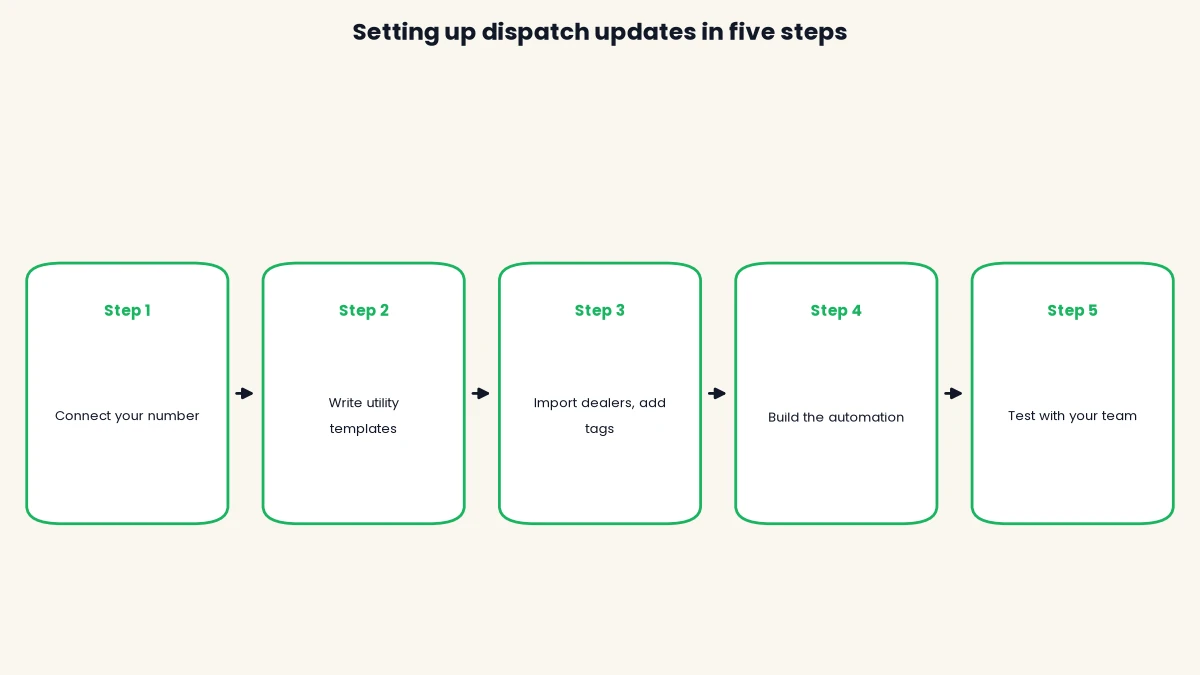
The setup takes five steps: connect a number, write the templates, load your dealers, build the trigger and test. The first message usually goes out about 15 minutes after signup, and the rest depends on how much of your data is ready.
Step 1: connect your WhatsApp number
Sign in to DTB and choose Connect with Facebook, which links your WhatsApp Business account without copying credentials. If your team already uses the WhatsApp Business app on this number, pick the option to keep using the app (coexistence), so staff can continue chatting from their phones. Our WhatsApp Business API requirements checklist lists what Meta asks for.
Step 2: write and submit the utility templates
Open the template builder, set the category to utility, and paste in the sample texts from earlier. The builder lets you add variables, an optional footer and up to three buttons, and shows a live preview. Submit each one to Meta. Review can take up to 24 hours, so do this before anything else.
Step 3: import your dealers and add tags
Upload your dealer or customer list as a CSV. Contacts hold a phone number, name, city and company, plus up to 50 custom fields, so you can store a dealer code or sales region. Add tags such as dealer, distributor or an order stage, and build segments from them. Only import people who gave you their number and agreed to receive WhatsApp messages from you.
Step 4: build the trigger
You have three ways to send, and the right one depends on how your order data lives today.
- A CSV campaign: upload the day’s dispatch sheet, map the columns and send a dispatched template to every row. This works on the Basic plan and suits a daily or weekly dispatch run.
- A segment-entry automation (Pro): when a contact enters a segment, for example by getting a “dispatched” tag, the automation sends the template. You can add a Wait step and a check on whether the message was read or replied to.
- The API, Zapier or n8n (Zapier and n8n integrations are on Pro): if your order data is in software that can call a webhook, DTB’s REST API can send a template message when the status changes. This needs a developer or a Zapier or n8n workflow, since DTB has no native ERP or Tally connector.
Step 5: test with your own team
Send each template to two or three internal phones before a real dealer sees it. Check that the variables fill in the right order, the dates read correctly and any button works. Then roll out to a few friendly dealers for a week, watch replies in the shared inbox, and widen from there.
Handling B2B edge cases
B2B orders break the simple one-order, one-customer pattern, so decide how you will handle several contacts, partial shipments and delays before you start. These cases are what most consumer-focused guides leave out.
Several people per account
The dealer’s owner, accounts person and store manager may all want the dispatch message. Each is a separate contact with their own opt-in, so add each number and tag them by role. Send the dispatch message to the store manager and the order confirmation to the owner, rather than sending every message to everyone.
Partial dispatches
If an order leaves in two trucks, send a dispatched message per truck and put the part and the vehicle number in the text. Add a line such as “1 of 2” in the template wording so the dealer knows more is coming. One contact can have only one value in a custom field at a time, so for many open orders per dealer use CSV rows or the API instead of storing the latest order number on the contact.
Delays and reschedules
Send the delay message as soon as you know, with the new date and a reason. Dealers forgive a delay they hear about early. They rarely forgive one they discover at the gate. Use the delay template sparingly, since sending it every day for the same order can irritate the buyer.
Status questions from dealers
Dealers will reply “status?” however polished your templates are. A keyword-triggered chatbot flow can answer common questions, and a Google Sheets node (a Pro integration) can read from a sheet your team keeps updated. Test this against your own sheet layout before relying on it. Anything it cannot answer goes to the shared team inbox, where you can assign the chat to a person.
Common mistakes
- Adding a promotion to a dispatch message. One “check our new range” line can move the template into marketing. Keep utility messages about the order only.
- Messaging dealers who never opted in. Meta requires opt-in. Capture it on the dealer onboarding form, the PO or a first WhatsApp message from them.
- Sending too many updates. A message at every internal step (cutting, welding, paint) floods the chat. Send one per stage the dealer cares about.
- Leaving out the vehicle or LR number. A dispatch message without it still triggers a call asking for the details.
- Sending only to one person. If accounts or the store manager never see the message, they call you anyway.
- Promising integrations you do not have. Decide how your order data gets into DTB before you tell the team it will be automatic.
Start with DTB at ₹1,499/month to run the full sequence, or begin on Basic at ₹500/month if CSV campaigns are enough.
How DTB helps with order and dispatch updates
DTB is an official Meta Tech Provider, and Meta’s per-message charges are billed separately with no markup from DTB.
- Template builder: create utility templates with variables, an optional footer and up to three buttons, and submit them to Meta from one screen.
- CSV campaigns: upload a dispatch sheet, map the columns and send immediately or schedule it. Available on Basic and Pro.
- Segments and tags: group dealers by region, role or order stage, with rules that apply tags automatically.
- Automations (Pro): send a template when a contact enters a segment, wait, then check whether it was delivered, read or replied to.
- Shared team inbox: dealer replies land in one place, grouped as open, expired, snoozed or resolved, and can be assigned to a person or team.
- Coexistence: keep using the WhatsApp Business app on the same number while the API sends the updates.
- API, Zapier and n8n: connect your own order system by webhook. There is no native Tally or ERP connector today.
If you are still choosing a provider, our comparison of the best WhatsApp Business API providers in India sets DTB against the other options, and WhatsApp Business app vs API explains why order updates at this scale need the API.
Conclusion
WhatsApp order and dispatch updates for manufacturers work best when the sequence is short: four messages per order, a delay message for slips, and nothing promotional inside them. Get opt-in from each dealer contact, keep the templates in the utility category, and test with your own team first. The result is fewer status calls and a clear record of what you told the dealer and when. For the wider picture, see WhatsApp Business API for manufacturers, and the pricing guide above if you are budgeting.
Book a free demo and see how a dispatch template and a segment automation fit your own order flow.
Frequently asked questions
Can manufacturers send order updates on WhatsApp?
Yes, through the WhatsApp Business API, to contacts who have opted in. Order and dispatch updates are sent as approved utility templates outside the 24-hour chat window. A dealer reply opens a window in which your team can answer freely.
Are WhatsApp order and dispatch updates free?
No. Meta charges per utility message, listed at about ₹0.115 before GST in India as reported for 2026. Since 1 October 2026 Meta also charges for utility messages sent inside an open chat window. Check Meta’s current rate card, as rates and volume discounts change.
Which template category should a dispatch update use?
Utility, as long as the message is about a specific order and has no promotion. Meta re-categorises a utility template that contains marketing content as marketing. Marketing messages cost about 7.5 times as much per message.
Do my dealers need to opt in to receive WhatsApp updates?
Yes. Meta requires businesses to get opt-in before messaging people on WhatsApp and to honour opt-outs. For dealers, you can collect it on an onboarding form, a purchase order or a first message they send you.
Can I send an invoice or LR copy with the dispatch message?
You can put the LR number and transporter in the message text. DTB’s documented campaigns attach one file to the whole audience, and per-dealer invoice delivery is not a documented DTB workflow, so treat invoices as outside this setup for now.
Does DTB connect to Tally or my ERP?
Not natively. Data reaches DTB through CSV uploads, the REST API, or Zapier and n8n webhooks. The API and webhook route usually needs a developer or an automation workflow on your side.
Can I keep using the WhatsApp Business app on the same number?
Yes, through coexistence. DTB lets you connect an existing WhatsApp Business app number and keep using the mobile app on it while the API sends updates.